
Guides / Multiplayer
Build a player shop
Sell items from a Create counter and use Workshop's Trading Hub to let other players find and visit it.

What you need
The shop logistics use Chapter IV Brass recipes. Start with one stocked container, one trade and a place to collect packages.

Build the Create shop
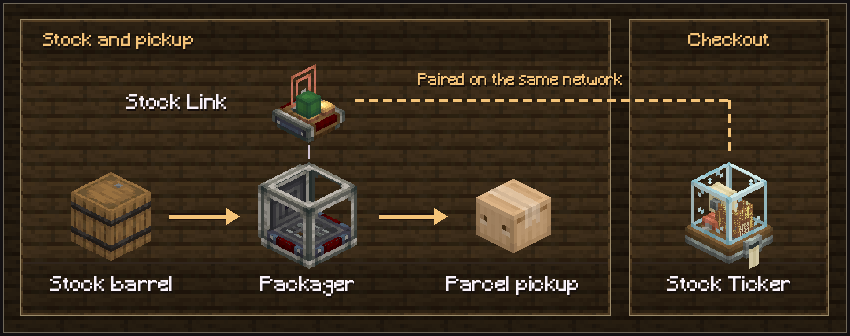
- Connect the stock. Attach a Packager to the side of your stock chest with its output facing out. Put a Stock Link on top of the Packager and fill the chest with the items you want to sell.
- Set up the counter. Hold a Stock Ticker and right-click the Stock Link to bind it before placing the Ticker. Put a seated mob or a filled Blaze Burner in front of the Ticker as its Stock Keeper. Mark a place for customers to collect the Packager's output.
- Prepare an offer. Right-click the Stock Keeper while holding an unplaced Table Cloth. Click a stocked item to add it and scroll over it to adjust the amount. Click Configure, then place the cloth in the shop. Each cloth represents one offer, which can contain several items.
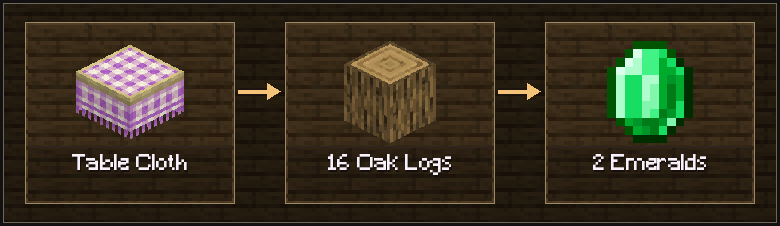
- Set the price. Right-click the slot on the side of the cloth with the item you want as payment. Hold right-click on that slot to set the amount per purchase. For example, configure a bundle of 16 oak logs and set the price to 2 emeralds.
- Check public access. Open the Stock Keeper screen and use the network lock so visitors check out using a Shopping List. Test a purchase as a customer, including access to the cloth, keeper and package pickup. Right-click the Stock Ticker to collect its stored payments.
For an in-game demonstration, hover over a Table Cloth and hold W to open Create's Ponder.

List your shop with the Shop Teleporter
The teleporter is named Trading Hub in-game. It puts your shop in the public warp directory. Create handles the sales at the counter.
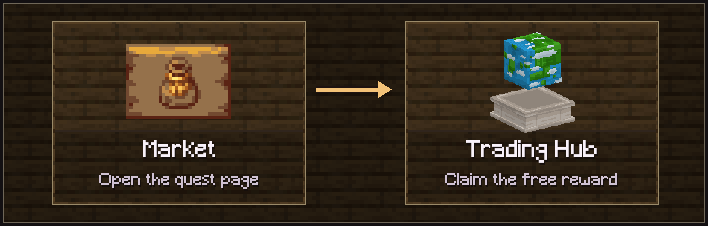
- Claim a free Trading Hub. Open your quest book, go to the Market quest page and claim the Trading Hub reward.
- Place it near the entrance. Leave a clear spot on solid ground next to the block for arriving visitors. Placing the Hub opens the listing editor.
- Publish the listing. Enter a recognizable name and a description of what you sell. Choose an icon, then click Save. To edit later, sneak and right-click your Hub, or find it under Your Warps.
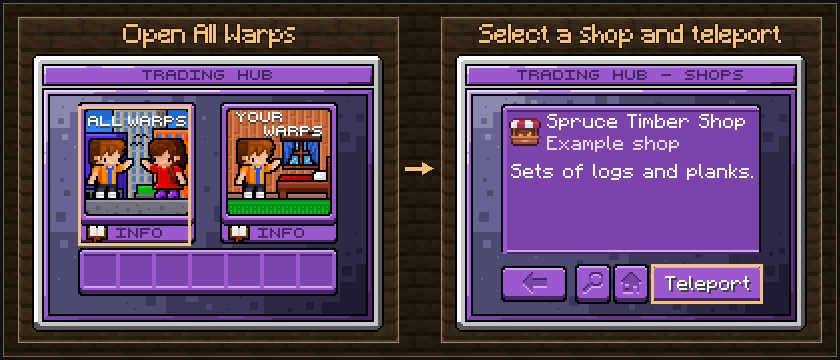
- Visit a listed shop. Right-click a Trading Hub, open the public All Warps panel, and search for the shop. Select the listing and click Teleport.

Buy and pick up an order
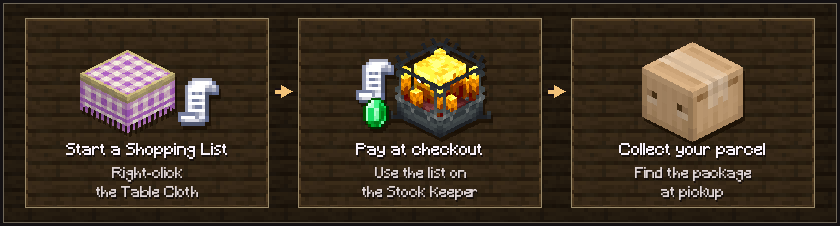
- Check the offer on the Table Cloth. Right-click the cloth with an empty hand to start a Shopping List. Keep the list in hand to add more offers from the same shop.
- Bring the payment items in your inventory. Right-click that shop's Stock Keeper with the Shopping List to pay and send the order.
- Collect the package at the shop's pickup point. The Packager at the stock chest creates it. Some shops route packages to a separate counter.
Troubleshooting
- The Stock Keeper shows no stock
- Check that the Packager can pull from the chest, the Stock Link is on top of it, and the Stock Ticker is bound to that Link.
- Visitors cannot order
- Confirm the Stock Keeper is in position, the offer has a price, and the chest has enough items for a full purchase. Test access to the counter and pickup point from a visitor's account if the land is claimed.
- The Trading Hub cannot teleport
- Clear space for visitors to stand next to the destination. Save the listing again if you moved or replaced its Trading Hub.
Video walkthrough
Shadow builds a working store with Create and shows how its parts fit together.
Watch How to Build a Store in Minecraft with Create Mod by Shadow on YouTube
Tutorial lettering by CraftronGaming.